RaceCommittee App (User Guide)
Introduction
This user guide is intended for race officers and other users of the RaceCommittee App. The document assumes that you have been handed a fully configured device (see guide for device administrators).
Logon
Each race officer is in charge of managing the races of a course area (Alpha, Bravo, Off-Shore,…). After selecting the active event on the left pane, click on your course area.
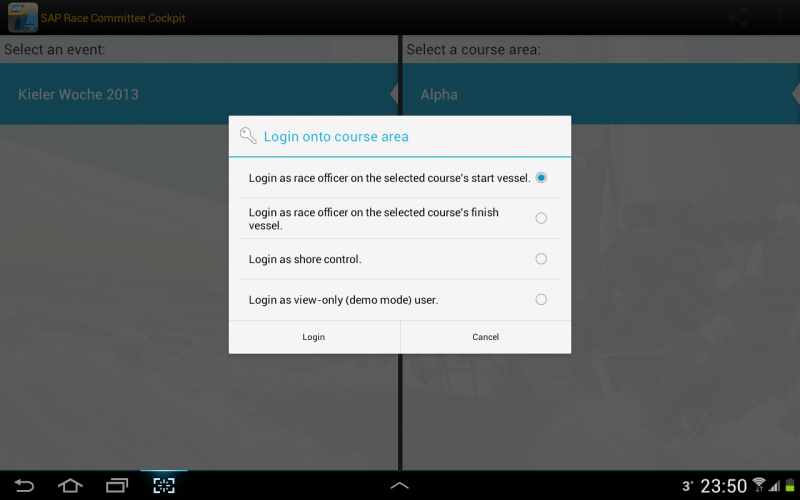
In the dialog screen choose "Login as race officer (start vessel)". Press Login. From now on you will see in the lower right corner the RaceCommittee App icon signaling that you are managing this course area. Using this notification icon you are always able to return back to your race management screen.
Race management
On the race management screen you see all races grouped by their regatta and fleet on the left side. By default the race list is filtered showing only active races. Use the top action bar to switch to "show all races" if you need to see all.
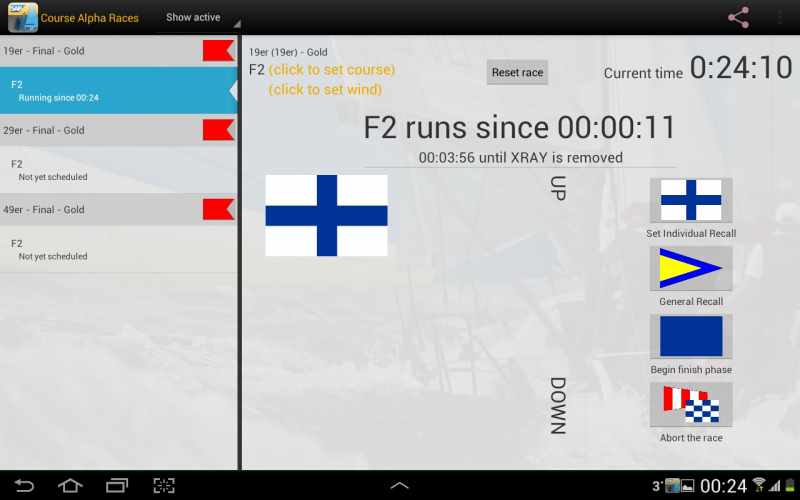
Clicking on a race in the race list opens up the race information screen on the right pane. This screen allows you to umpire a race.
Clicking the back button on your device or touching the home icon (top left corner) logs you out of the active course area.
Scheduling a race
One of the most important task in the life of a race officer is scheduling her races. Whenever you select a unschedulded race the race information screen asks you to select a racing procedure and a start time. By default a start time in the near future is selected.
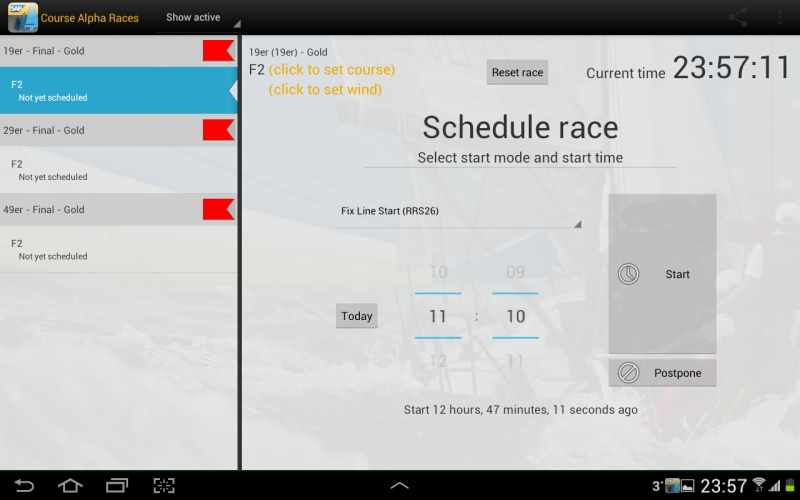
When you are satisfied with the start time selected (hint: click on 'Today' to select a different date) and racing procedure, click 'Start'. As you will see below you are always able to reschedule a race. Therefore the best race officers schedule multiple races at once. After scheduling the first race of the day, just select the next race in the race list and set an estimated start time.
On the same race information screen you are able to postpone an unschedulded race. Click on 'Postpone' and select the postponment flags.
Scheduling a race in the past
It is perfectly fine to schedule a race into the past. The RaceCommittee App will simulate the race and its startphase up until the present time. When scheduling a race in the past it might happen that the app asks you for additional information regarding the startphase of the selected racing procedure (e.g. setting a startmode flag).
Managing the startphase
Selecting a scheduled race will take you to the startphase race information screen. On this screen you are able to manage the startphase of the race's racing procedure. While the available actions vary between the racing procedures you always see the following:
- Countdown to start
- Countdown to next flag change
- Currently displayed and removed flags
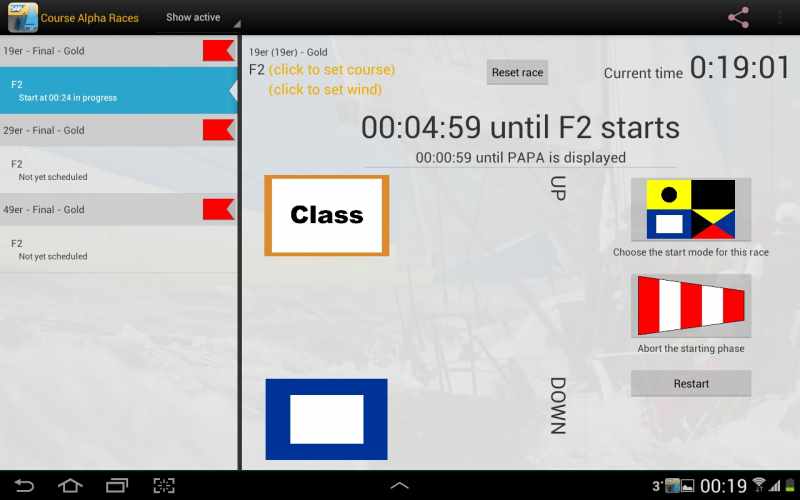
Regardless of the racing procedure you're able to abort (AP flag) and reschedule the race.
Managing an on-going race
While a race is on-going the race information screen shows the running race information screen.
You are still able to abort the race (AP or November flag) and signal a general recall. Both actions will unschedule the race, taking you back to the schedule race screen.
If active for your configuration/regatta you are able to signal an individual recall (X-Ray flag). Currently you're not able to enter the competitors violating the starting line. The X-Ray flag will be removed after 4 minutes automatically. You can always remove it before the timer terminates by clicking on "individual recall" again.
When the race is about to finish (finishing vessel displays blue flag, first finisher crosses the line, last leg,…) click the blue flag to start the finishing phase.
Finishing a race
While a race is finishing the race information screen will show you the finishing phase.
On this screen you're able to abort (November flag) the race or end the race. To end the race click on the blue flag.
Further management activities
Besides the normal race management workflow described above there are additional management activities which can be executed on a race at any time. See also Signaling a course change.
Protest time
If active for your configuration/regatta you can click the bravo flag on a fleet's header in the race list to signal the start of the protest time for this fleet.
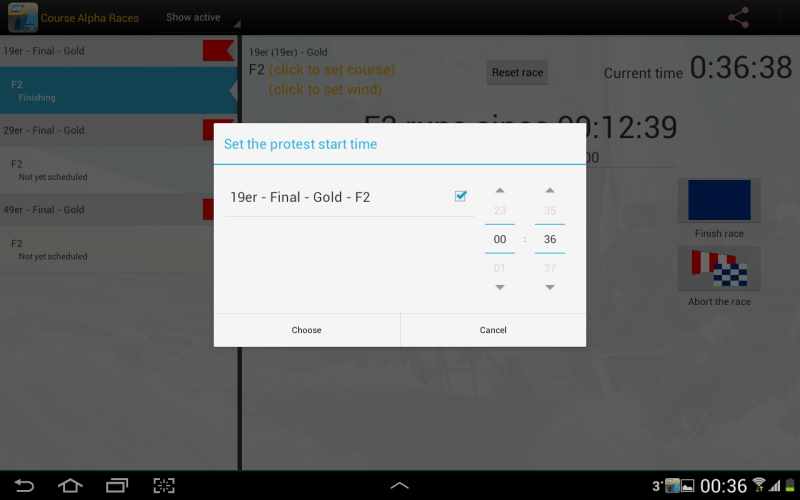
In the dialog window select all races of the fleet whose protest time should be set. By default all already finished races are selected.
Wind
In the top bar of each race information screen you are able to enter wind data. Click on the yellow link text 'set wind' to open the wind input dialog
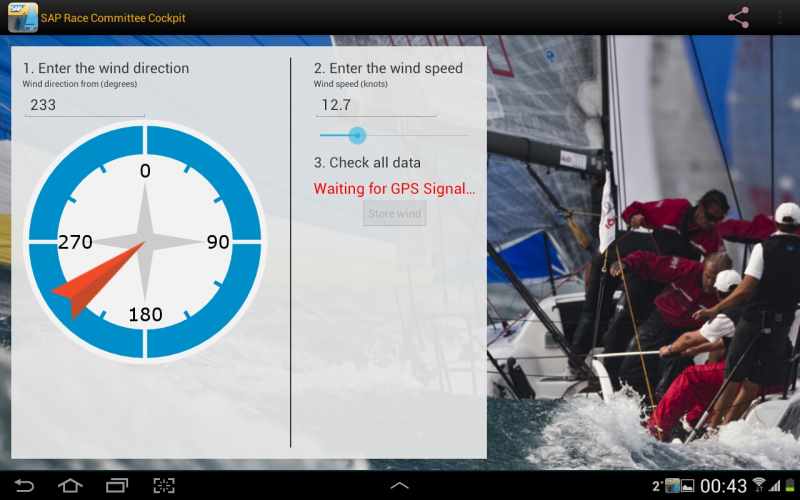
Using the GPS receiver of your device the dialog will determine your position. Enter the wind direction and speed and click 'store'.
Racing Procedures
Every time you start a race (e.g. schedule a race for the first time, restarting a race after general recall, …) you are able to choose the racing procedure. The racing procedure defines how the startphase is set up. This may include signaling flags that are triggered at a fixed time and signals you have to choose from.
RRS26
The RRS26 racing procedure should be used for races using the RRS26 starting sequence. This sequence is defined as the following:
- 5 minutes before start the warning signal is set. Class flag (as configured) is displayed.
- 4 minutes before start the preparatory signal is set. By default you are able to choose between the following flags: Papa, India, Zulu, Black to be displayed.
- 1 minute before start the one minute warning is set. The preparatory flag is removed.
- At start the class flag is removed.
For the RRS26 racing procedure you are able to signal individual recalls by default.
Gate Start
The Gate Start racing procedure should be used for races using a gate (or rabbit or gate launch) start. We've seen some variations of the implementation of a gate start, therefore you should double check with the administration team that the Gate Start racing procedure is correctly configured fitting your regatta's sailing instructions.
- At any time you are able to configure the following:
- Pathfinder: If enabled for your regatta, you are able to set the pathfinder. You have to enter the pathfinder's sailing identifier.
- Gate launch stop time: Before the race starts, you have to set the gate launch stop time. This time determines how many minutes after the start the gate launch will stop.
- Golf down time: If enabled for your regatta, you have to set the additional golf down time. This time determines how many minutes after the gate launch has stopped, the starting line will be closed. If your regatta is configured to not use an additional golf down time, the starting line will close after the gate launch has stopped.
- 8 minutes before start the warning signal is set. Class flag (as configured) over Golf is displayed.
- 4 minutes before start the preparatory signal is set. Papa flag is displayed.
- 1 minute before start the one minute warning is set. Papa flag is removed.
- At start Class flag is removed.
- After the gate launch stop time has expired the golf flag is hoisted to half-mast. The gate launch stops. This step is not yet visualized in the app.
- After the additional golf down time has expired the golf is removed. The starting line is closed. If you're regatta is configured to not use the additional golf down time, the starting line will close after the gate launch stop time is expired.
By default you are not able to signal individual recalls for the Gate Start racing procedure.
ESS Start
The ESS racing procedure models the starting sequence used at the Extreme Sailing Series.
- 4 minutes before start AP flag is removed.
- 3 minutes before start a flag indicating a 3 is displayed.
- 2 minutes before start a flag indicating a 2 is displayed. The previous flag is removed.
- 1 minutes before start a flag indicating a 1 is displayed. The previous flag is removed.
- At start the one minute flag is removed.
By default you are able to signal individual recalls for the ESS racing procedure.
Additionally you are able to enter the finishing list on the race finishing information screen. Just drag and drop the available sailors from the right to their correct position on the left. You are able to reorder them as you need. Be sure to confirm your finishing list after the race is finished. Click on the 'Confirm Competitors* buttons after you have finished the race.
Basic Countdown Start
Use the Basic Countdown racing procedure whenever all the other procedures do not match your needs. There are no flags used in the starting sequence, it is just a countdown to the scheduled starting time.
Signaling a course change
There are different ways to signal a course change. Your device has been configured by the administration team to select the best method for you.
By-Name
Simple course name selection screen. The available course names are pre-configured by the administration team.
By-Marks
Design the course by defining marks and gates from existing assets provided by the server. You can choose to reuse the last published course design when no course change has occurred.
By-Map
Lorem ipsum.
Troubleshooting
The following sections will help you with some common problems.
Race reset
Whenever a managed race is in a wrong state or you want to redo the race, click 'Reset race' in the race information's top bar. Please read the warning displayed.
Connectivity problems
In the top right corner three dots indicate the connectivity status. If there is a problem with sending or receiving data to/from the server the dots will turn red. Don't panic: since you probably aren't sitting in the range of a Starbuck's WiFi this will happen often. Just wait some time and put the device somewhere you expect celluar network coverage. The device will re-try to send data every minute.
 **versus *
If the dots stay red contact the administration team or see the administration wiki.
Reload all data
If the available course areas/regattas/races on your device aren't up to date anymore, e.g. you are missing a regatta, you can try to reload all data from the server. Click your devices menu button or select the options overflow icon (top right corner) and click 'Reload'. This will log you out of your course area.
Crashes
If the app crashes it will try to restart. You'll have to re-logon onto your course area. The previous state of your managed race will be restored, including unsent changes and data.
If the app crashes over and over again contact the administration team.