RaceCommittee App User Guide (Administrator)
This user guide will help you to configure all your RaceCommittee App devices. The guide is targeted at a multi-device, multi-course-area, multi-race-officer setting. So feel free to omit steps whenever you feel that you don't have to use every feature for your current regatta. It is reasonable to stick to the presented order of steps.
Preparation of devices
The RaceCommittee App supports remote configuration via the AdminConsole interface on the server. Open up the AdminConsole and select the tab Device Configuration. Click Add Configuration.
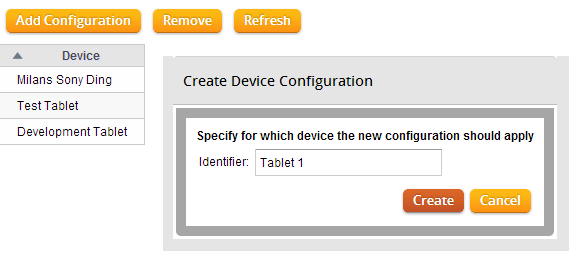
First you need to enter a device identifier. It is a good idea to label the device with the this identifier, to enable the identification of the device by an untrained user.
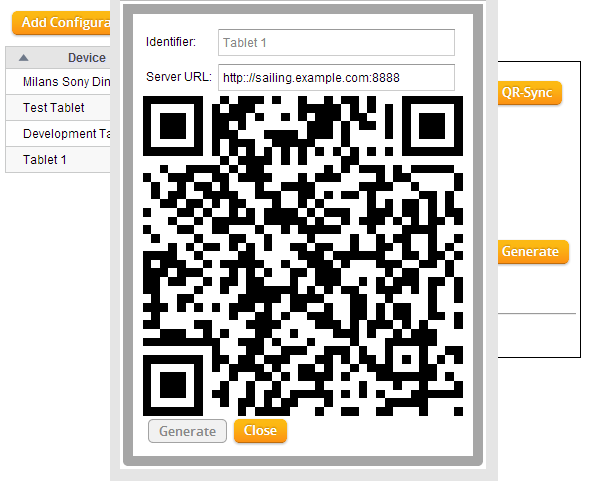
You need to assign this identifier to the target device. Click on QR-Sync, recheck the current identifier and ensure that the Server URL is the correct server the device should be talking to. When done with your modifications hit Generate.
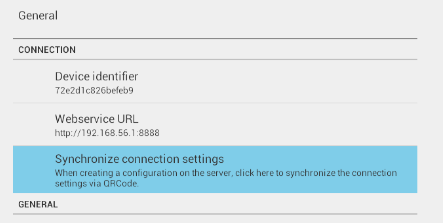
Fire up the RaceCommittee app on the target device. Go to the settings view by clicking on the options overflow button (top right corner) or your device's menu button. Select the preference category General and click on Synchronize connection settings. Scan the barcode shown in the AdminConsole (if you don't have a barcode app installed the RaceCommittee App should redirect you to the Google Play Store offering an app). The Device Identifier and Webservice URL preferences should reflect the changes made.
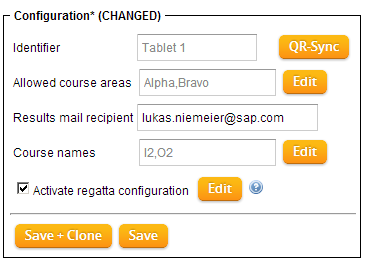
Back in the AdminConsole configure your device (see next step). When done click Save + Clone to use the current configuration as a template for the next device.
Repeat until you've configured all your devices.
Configuration of devices
There are several preferences you can configure to control the overall functionality of the RaceCommittee App. All these options can be configured either via remote configuration (see above) or on the device itself. The remote configuration is fetched on selecting an event in the event selection screen. If there is a configuration stored on the server for the target device, it will overwrite the corresponding options in the device's local configuration.
In the following we will have a look at some of these settings. Most of them are enabled for remote configuration.
General preferences
- Device Identifier: See above. Used to identify the device when fetching a remote configuration.
- Server URL: The server the device will talk to. On change you should reload the app.
- Synchronize connection settings: See above.
- Managed course areas: The user is able to logon to the configured course areas.
- Results recipient: When active, the race's results (photos) will be sent to this mail.
Racing Procedure
- Overwrite Racing Procedure: Selecting this option will let the app preselect your overwrite racing procedure regardless of the regatta's configuration and the history of the race's procedures.
- Configuration of procedure: Each racing procedure has some options to be configured. Keep in mind that changing these settings will have an effect on new racing procedures (ongoing race with no change in their racing procedure will keep the old settings!)
Course Designer
- Overwrite Course Designer: See overwrite of racing procedure.
- Configuration of designers: Each designer has some options to be configured.