Create a new Amazon app instance
The following screenshots will help you creating a new Amazon application instance. An application instance is the container for exactly one Java application server. Each instance is configured using so called "user data". This configuration will then be read by the java server.
AMI Selection
In the "Classic Wizard" select "My AMIs"
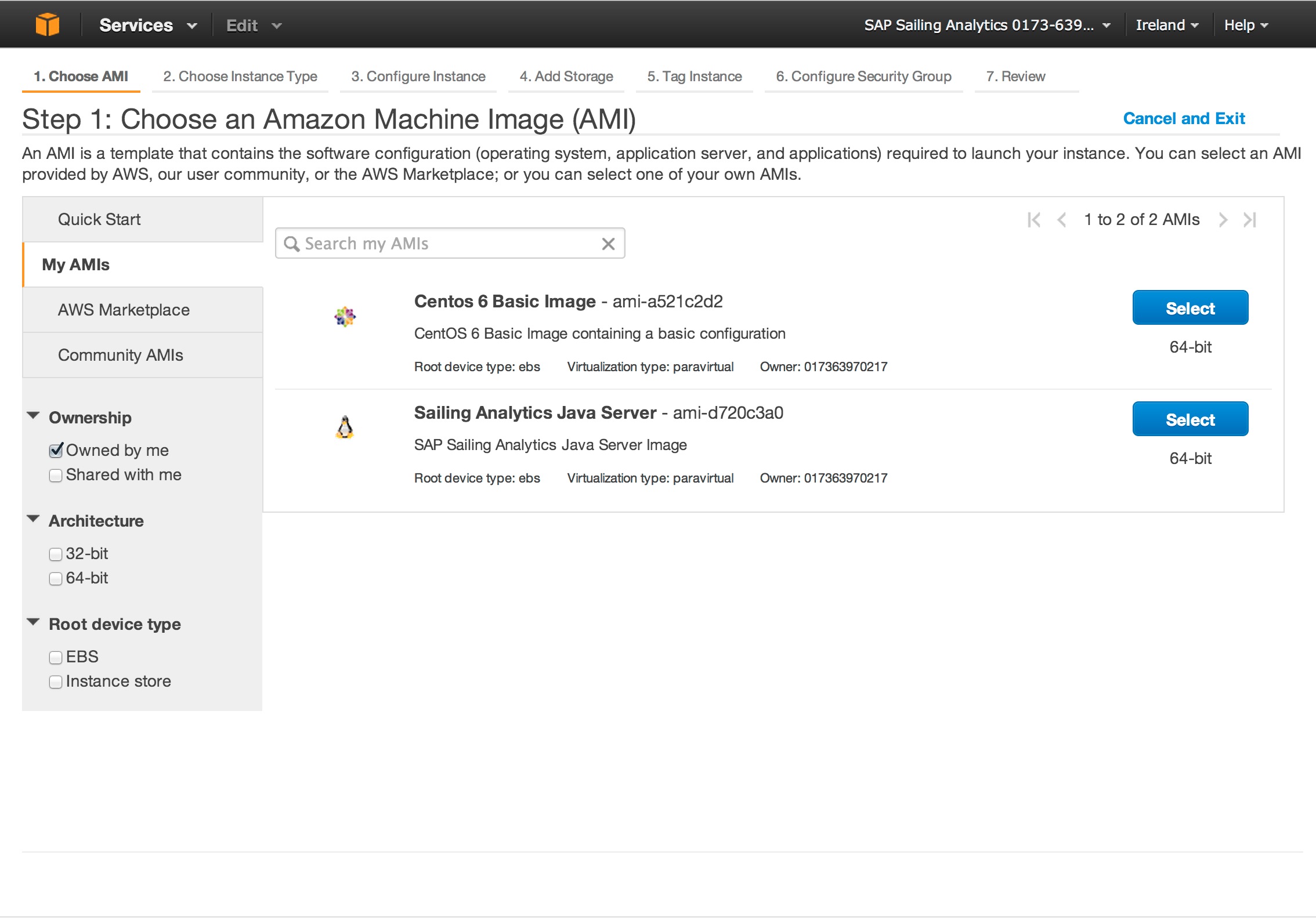
Make sure to select the AMI with the name "App"
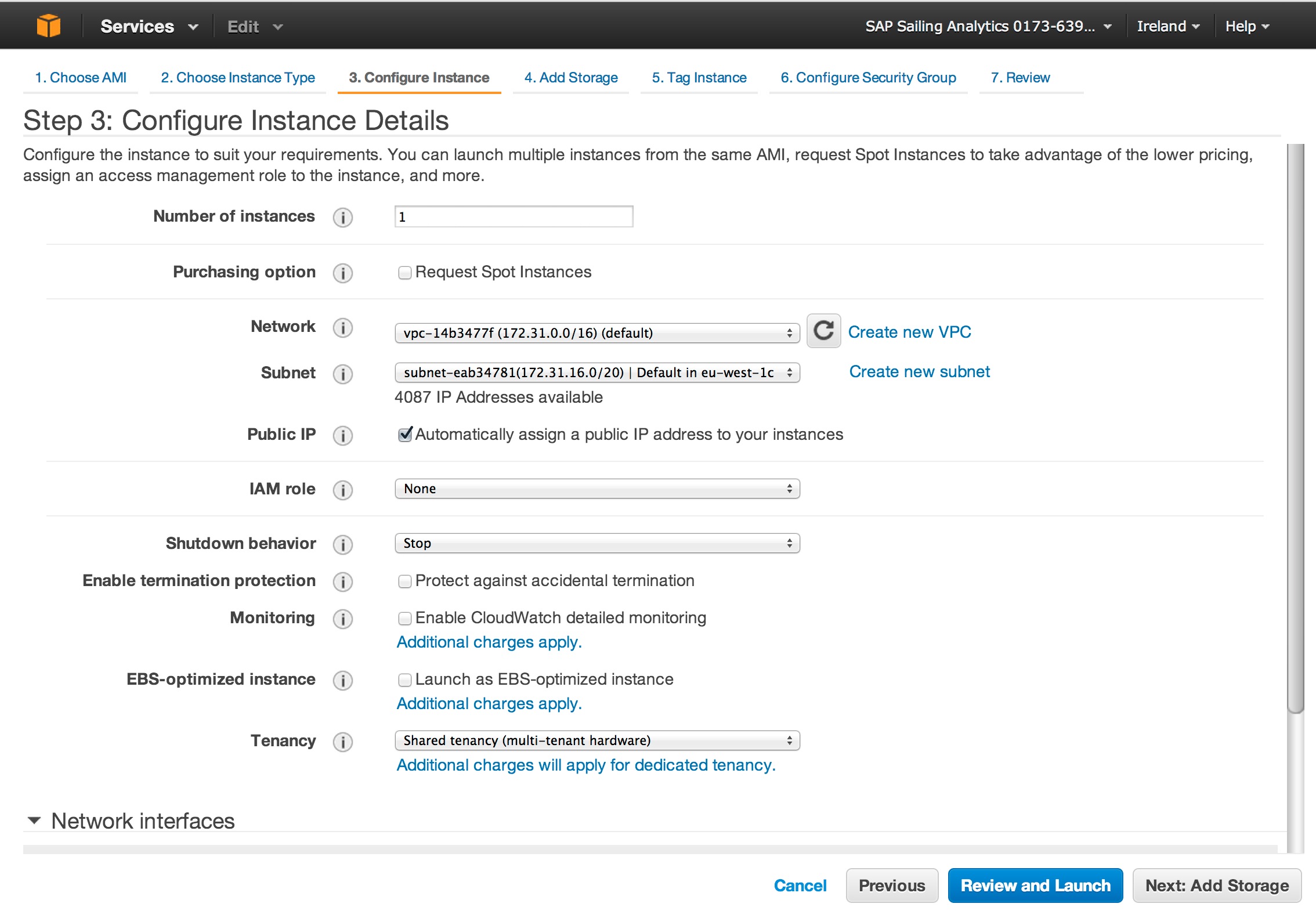
Select a subnet that matches the one of the database server
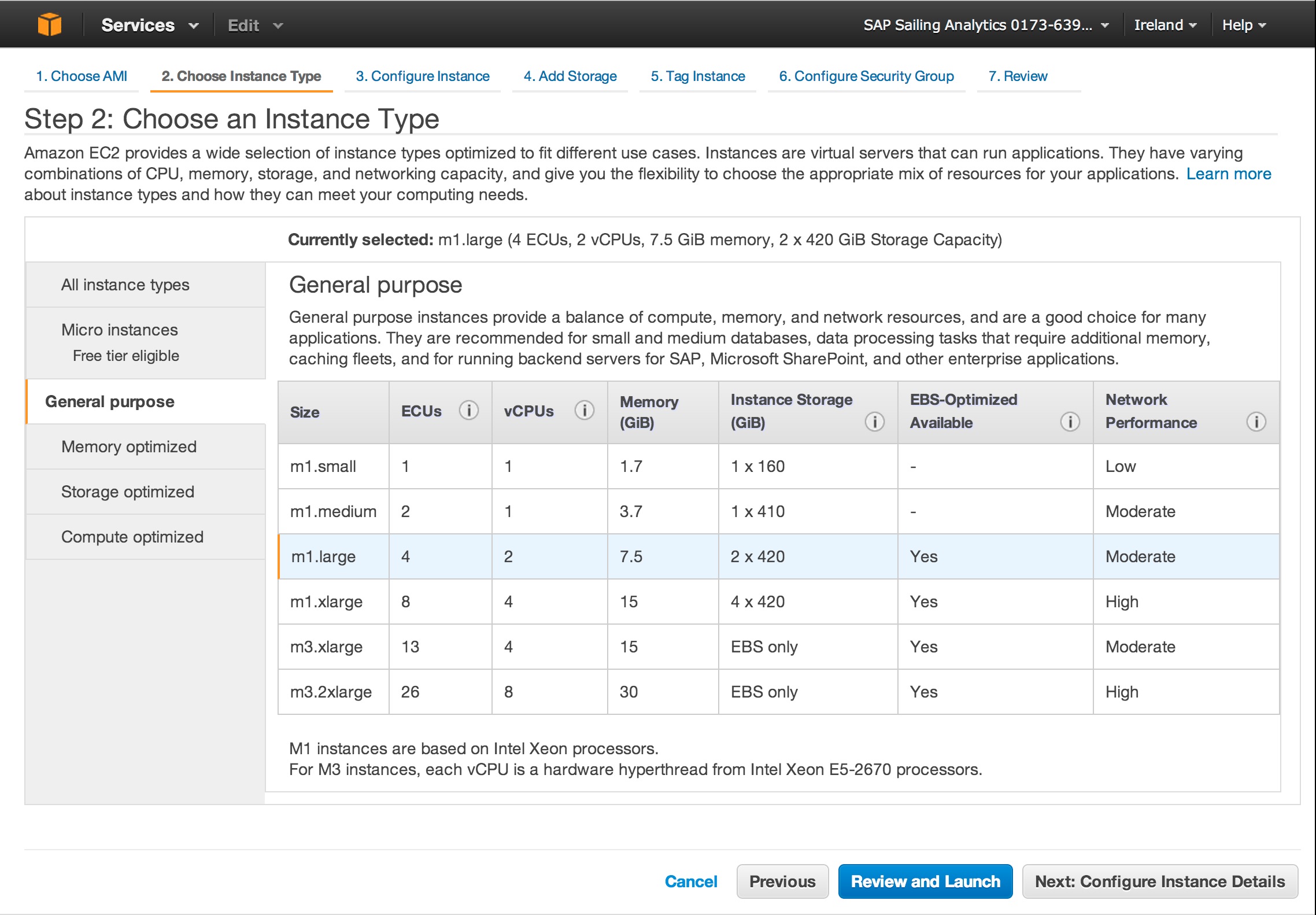
Select the correct instance type. Micro also works if you don't want to put that much load on your server.
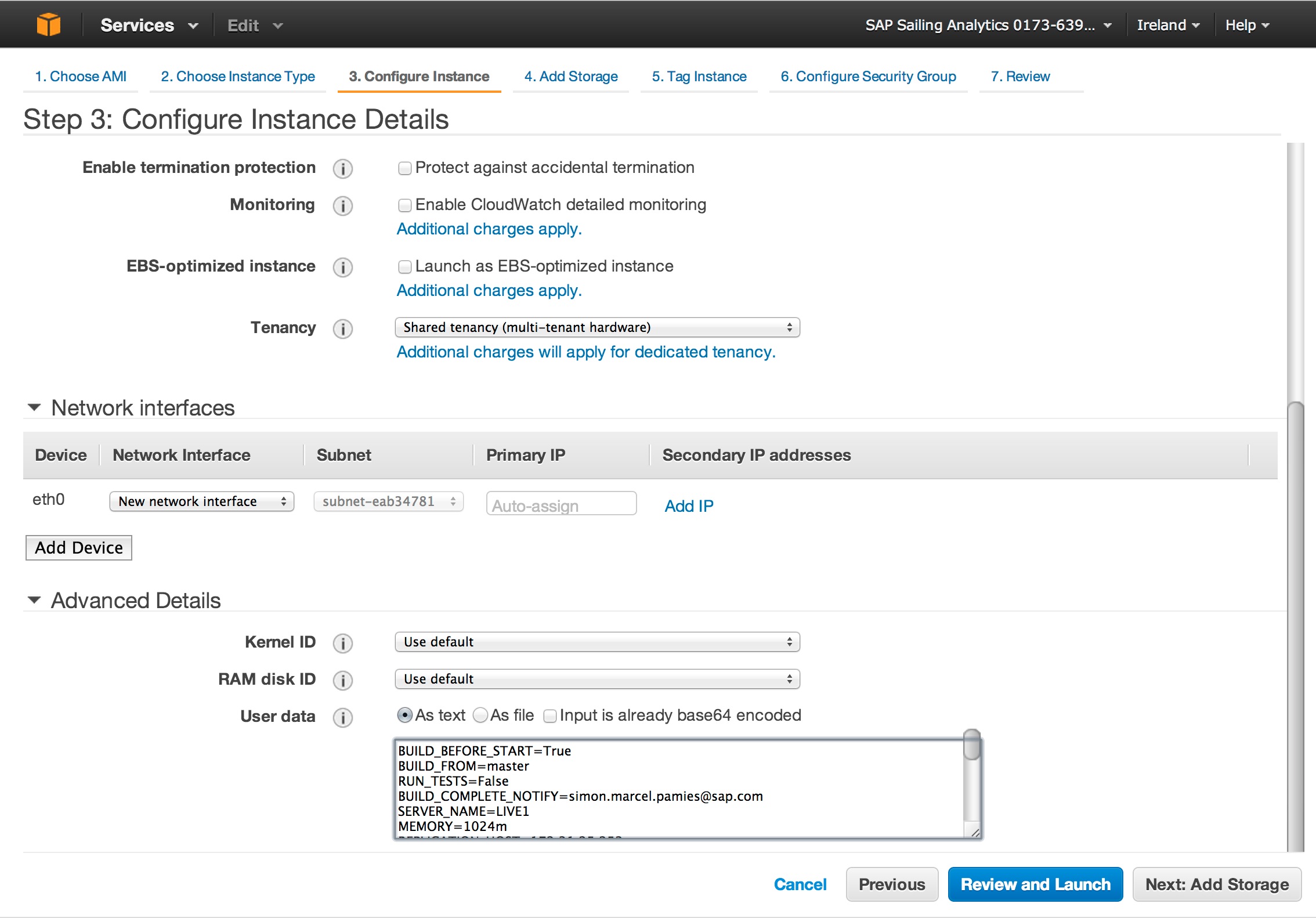
Leave Kernel and RAM disk to Default. Then put the configuration for this server into the text area labeled "User Data". This configuration should at least contain MONGODB_* and REPLICATION_* parameters. Here one example:
BUILD_BEFORE_START=True
BUILD_FROM=master
RUN_TESTS=False
BUILD_COMPLETE_NOTIFY=simon.marcel.pamies@sap.com
SERVER_NAME=LIVE1
MEMORY=1024m
REPLICATION_HOST=172.31.25.253
REPLICATION_CHANNEL=sapsailinganalytics-live
TELNET_PORT=14888
SERVER_PORT=8888
MONGODB_HOST=172.31.25.253
MONGODB_PORT=10202
EXPEDITION_PORT=2010
REPLICATE_ON_START=False
REPLICATE_MASTER_SERVLET_HOST=
REPLICATE_MASTER_SERVLET_PORT=
REPLICATE_MASTER_QUEUE_HOST=
REPLICATE_MASTER_QUEUE_PORT=
SERVER_STARTUP_NOTIFY=
It does not really matter which SERVER_PORT you use because there is only one app per instance. But this makes it easier to configure instances for Apache, a Load Balancer or other uses. If you want to create a cluster that is self-replicating and has a load balancer in front of it then make sure that all your instances are running on the same port.
Use a new interface for your Network. Do not change any other field.
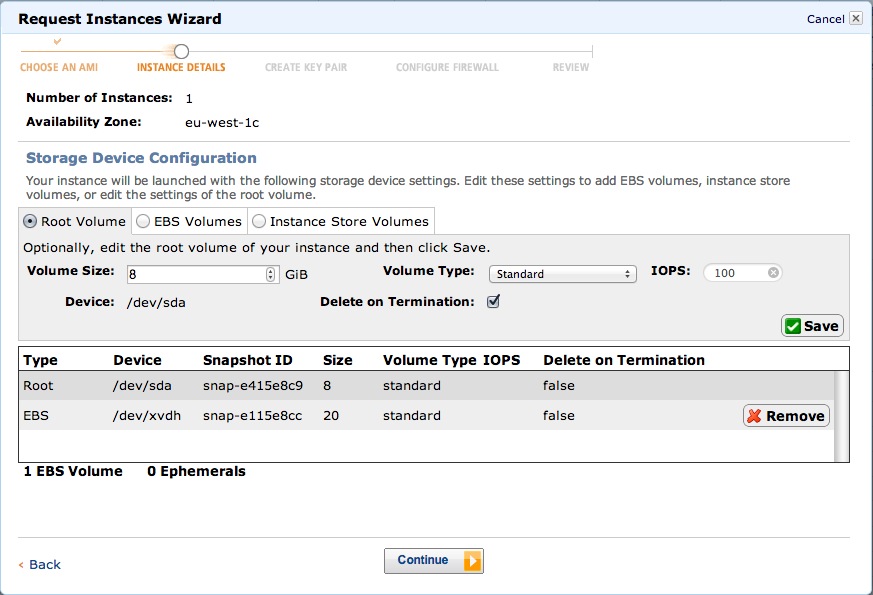
Now make sure to click on the "Edit" button
In order to select "Delete on Termination" for your root volume
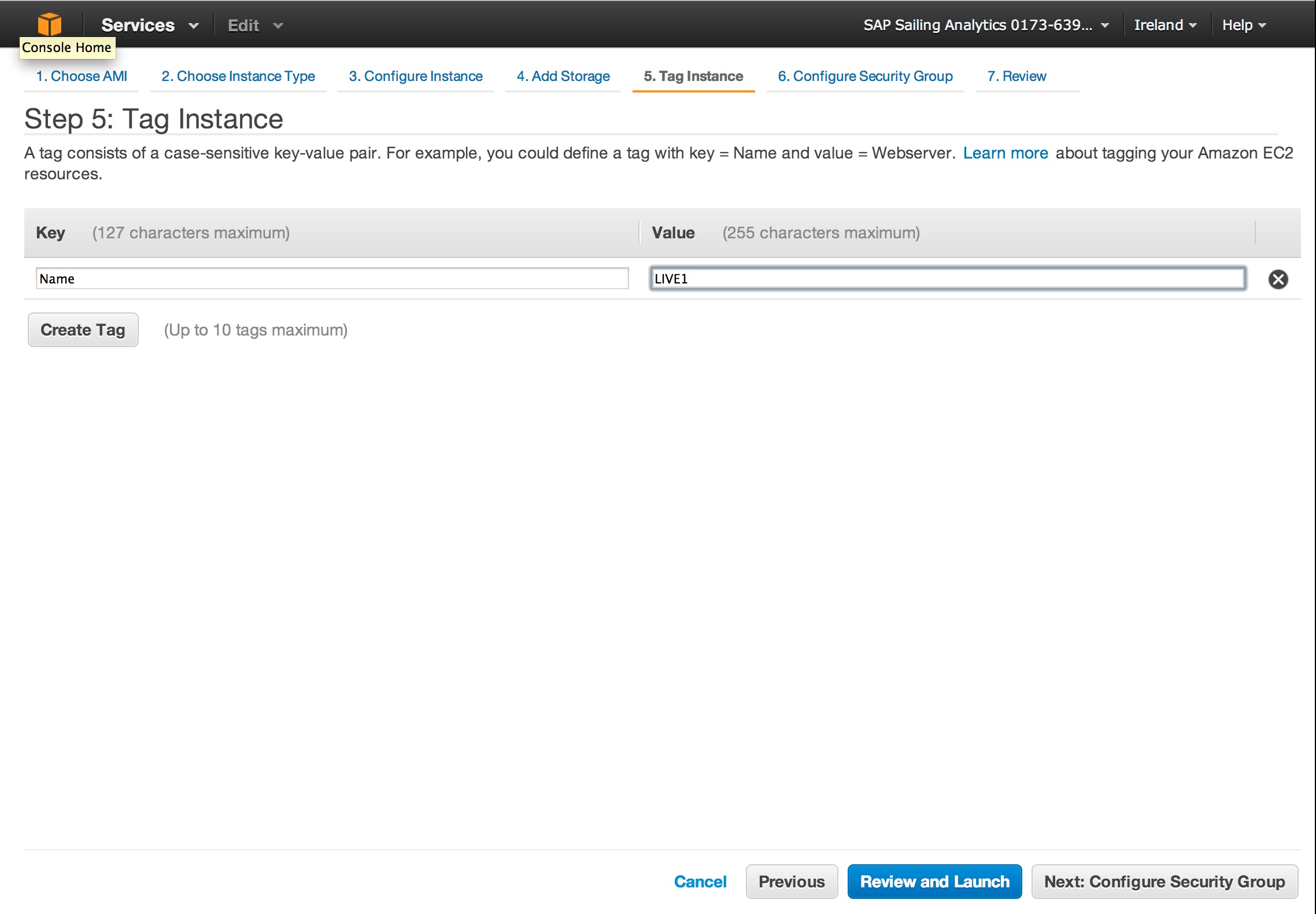
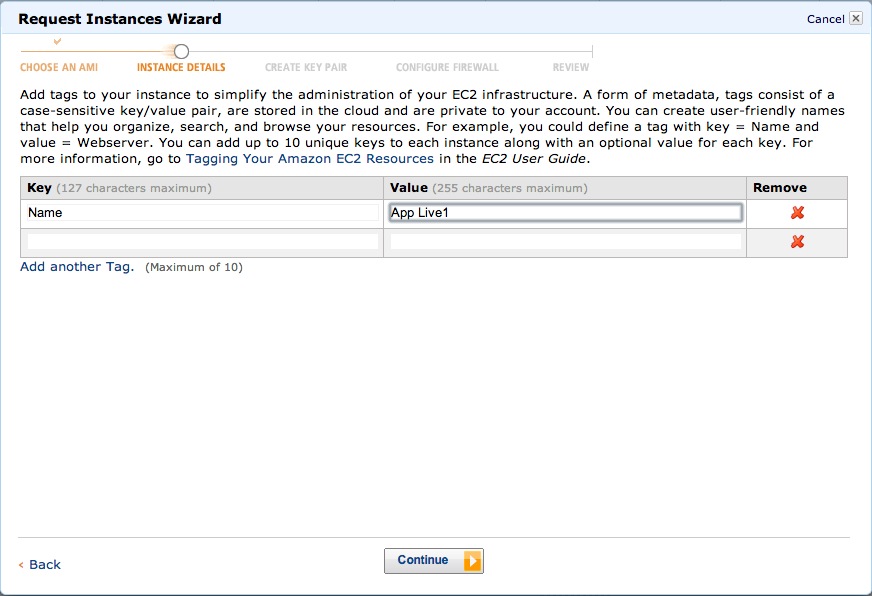
Then give your instance a meaningful name by inserting a value for the tag "Name"
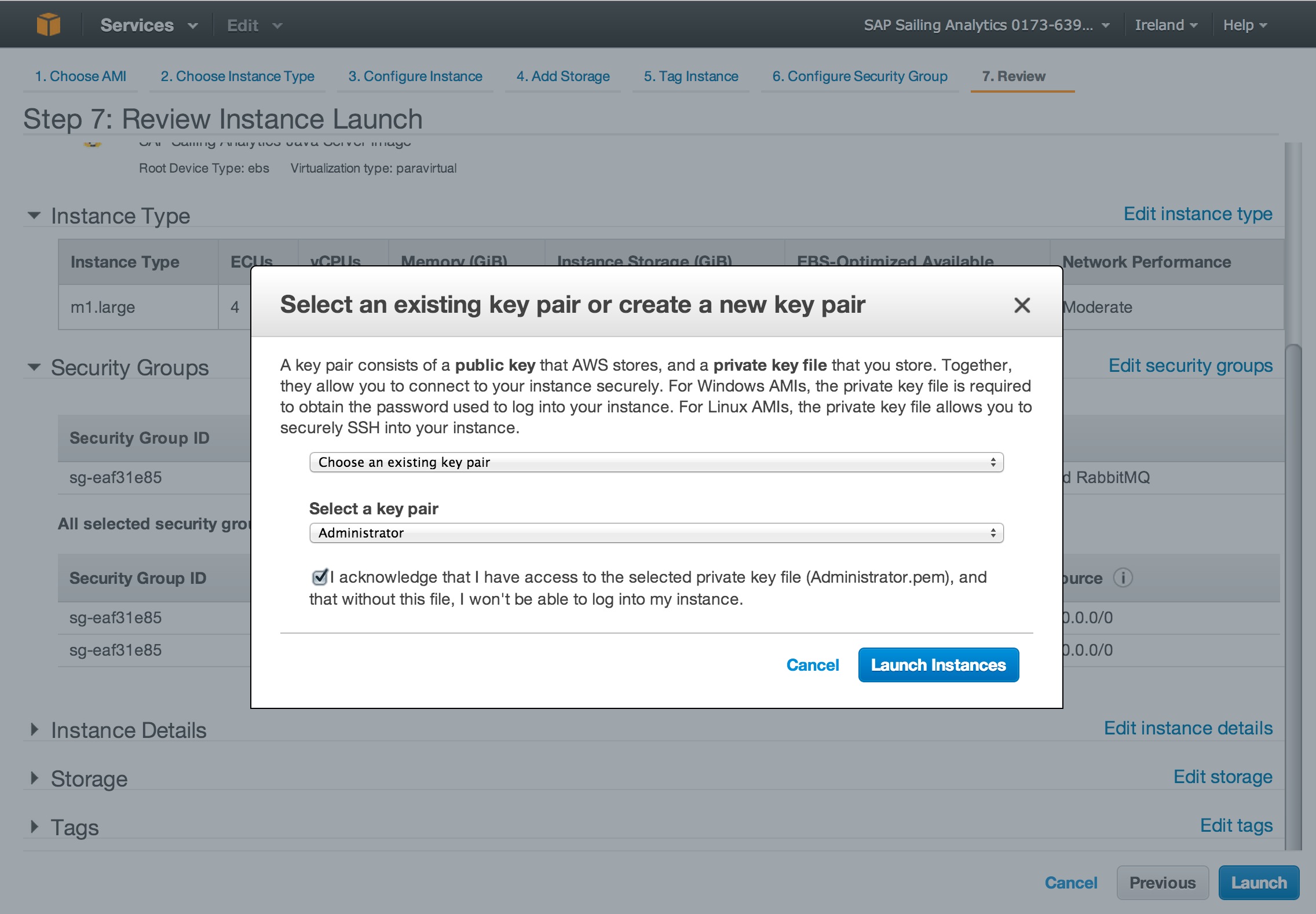
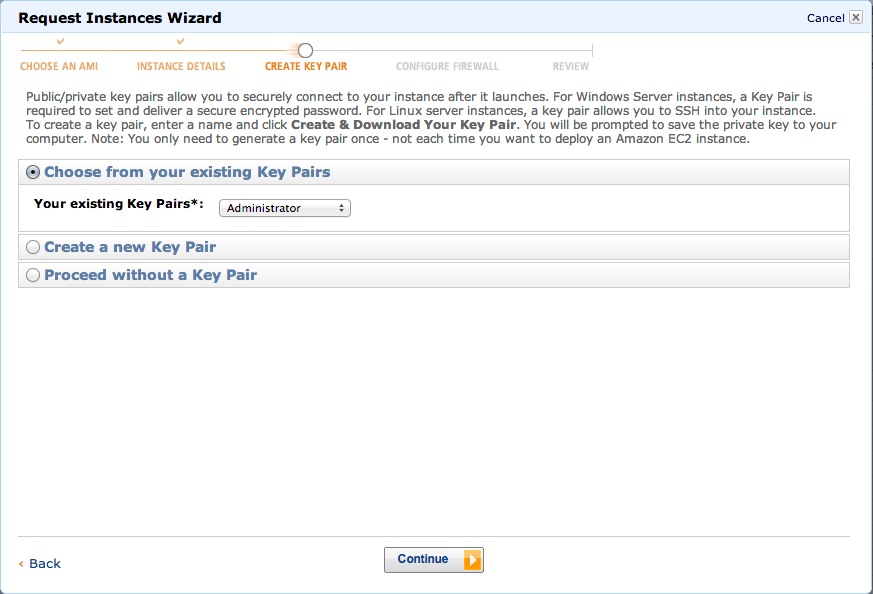
Use the existing "Administrator" Key. Do NOT generate your own key - this won't work. In order to access instances you should've got two private keys. If not then contact one of the administrators.
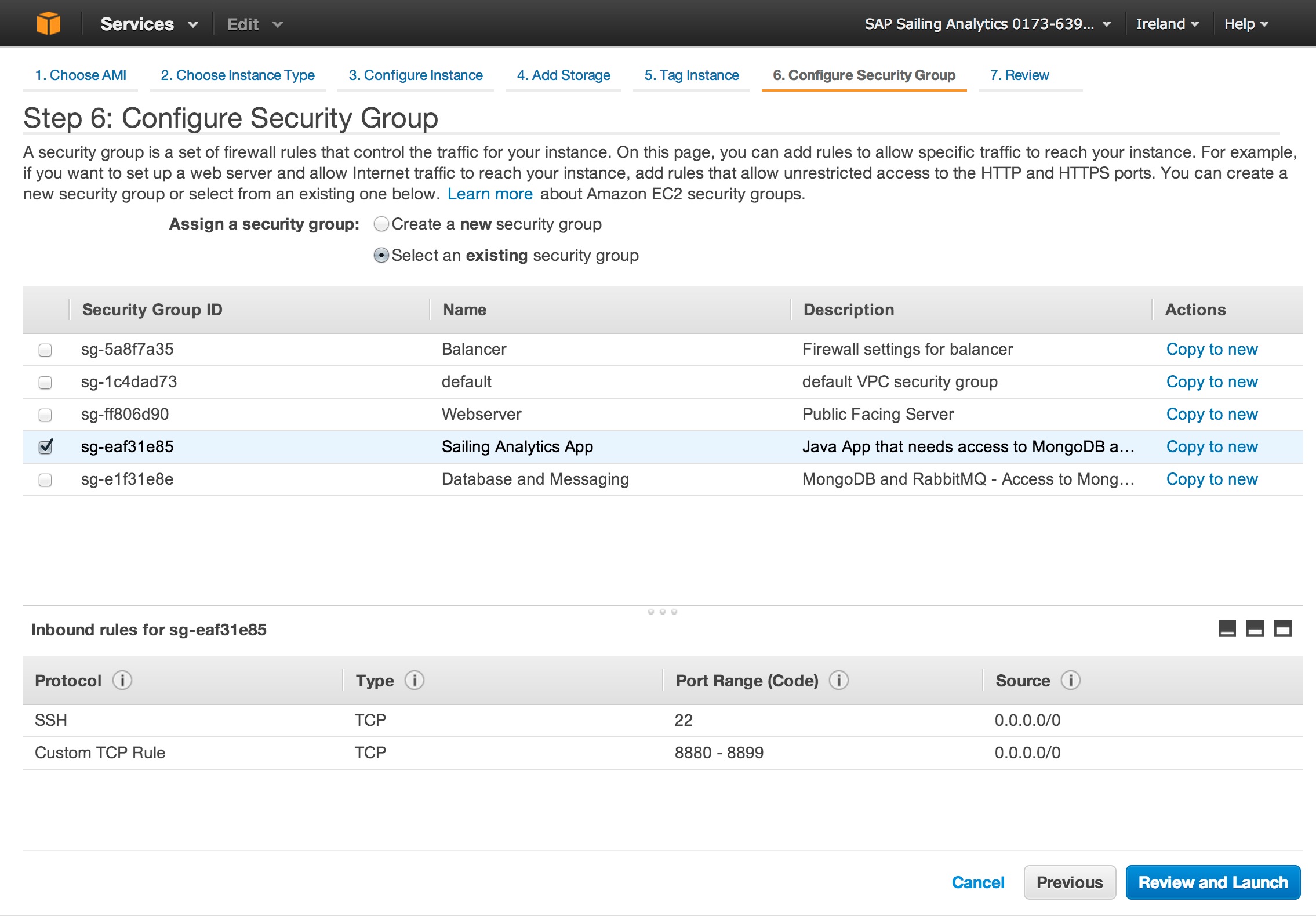
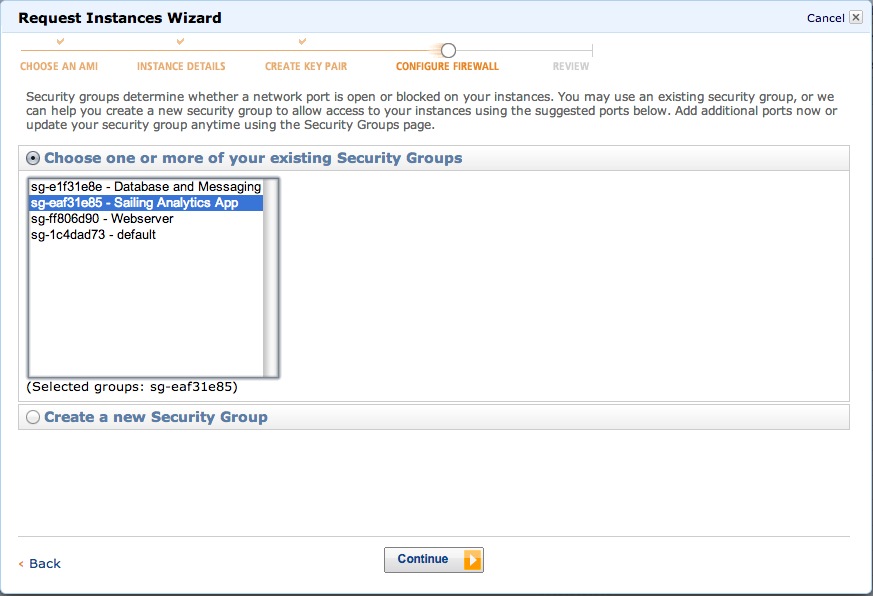
Then select the preconfigured security group "Sailing Analytics App". Do NOT select anything other than that or create your own.
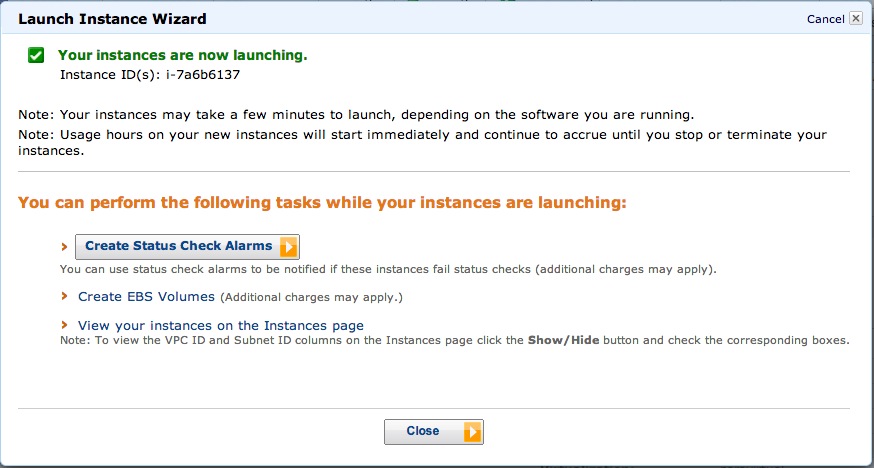
Your instance is now launching. You can create alarms if you want to monitor the state of the application. Be aware that monitoring is costy.
Your application is now ready. Check that everything is green.
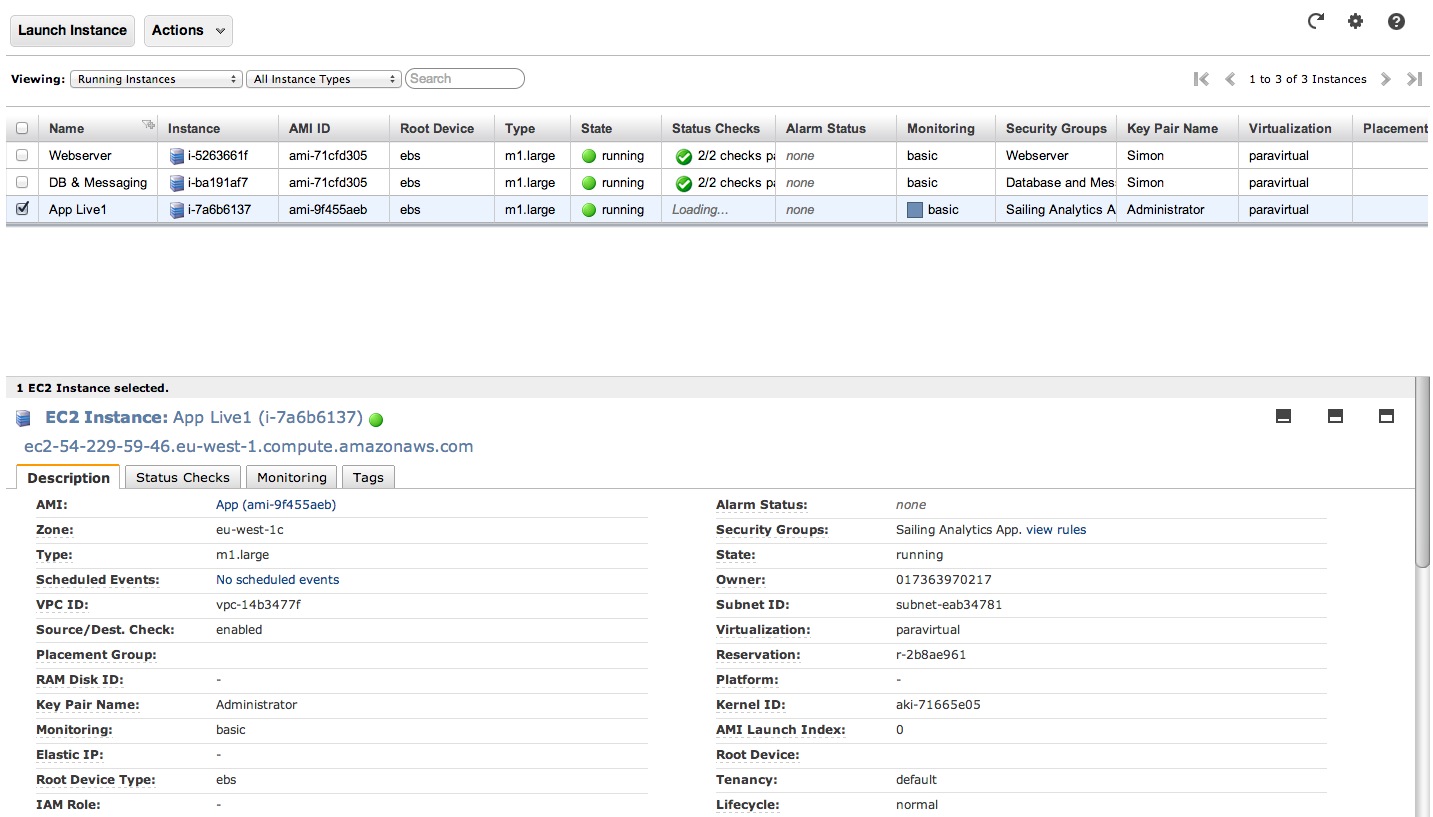
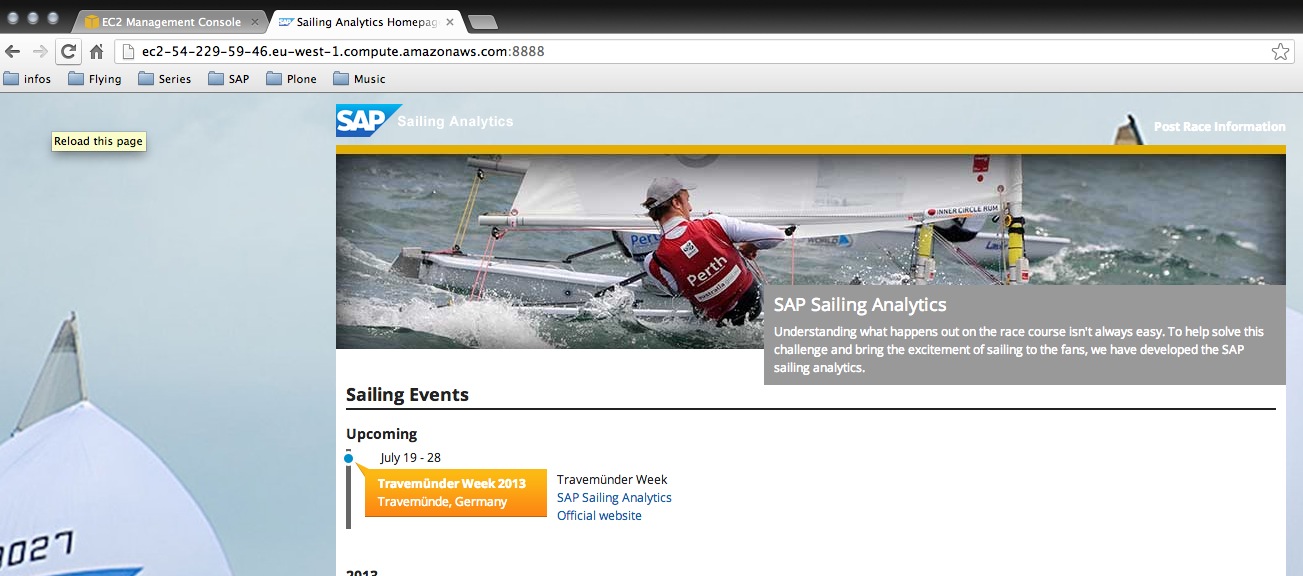
You can access the application server by using the DNS and the port you've configured.